How to Record a Zoom Call for What Was Actually Said
Every real way to capture a Zoom meeting, as host or participant, across Mac, Windows, and phone, plus the audio each method drops and a walkthrough for turning the call into a searchable transcript.
Screen Record a Zoom Call, or Capture the Words Behind It
If you searched how to screen record on Zoom, you have a specific outcome in mind, and it helps to name it before you press anything. When the call ends, you will open one of two things: a video of a shared screen, or the words and the decisions. Those are different files, and the second one is the file people actually reopen a week later. This guide walks every real way to record a Zoom call, as host or as a participant, on Mac, Windows, and phone, with the audio gap each method quietly leaves and the consent line to say out loud. It also shows, step by step, how talk2bud turns the same call into a searchable transcript straight from your Mac's system audio, with no bot in the room and no permission button to wait for. Capturing that way is not the same as recording in secret, so it stays honest only when you still say the consent line out loud, which this guide hands you.
The short version, by who you are in the meeting:
- As the host, click Record in the toolbar, then Record on this Computer.
- As a participant, ask the host for Allow Record, or capture the call with your own device.
- On Mac press Shift-Command-5, on Windows Win+Alt+R, on iPhone use Control Center.
- Tell the room before you start.
The Question Behind Every Zoom Recording
A recording is a means, and the goal sits one step past it. Nobody wants a 40-minute file parked in a folder. They want the decision that landed at minute 31, the number someone quoted, the follow-up a colleague promised. A screen video buries all of that inside a timeline you have to scrub. A transcript puts it behind a search box.
That split shows up inside Zoom itself. A local Zoom recording hands you a video file and an audio file and no transcript at all, because captions and transcripts arrive only with the paid cloud recording (Zoom's recording FAQ, verified August 2026). So the free default gives you exactly the object you then have to dig through by hand.
Hold that framing while you read. Each method below answers one question, how do I capture this call, and each leaves you with pixels and sound to review later. The other path, covered further down with its own steps, captures the meaning while the call is happening and skips the review entirely.
Three Checks Before You Press Record
Most recordings that fail never make it past three questions: who you are in the meeting, which plan the account is on, and which Zoom you opened. Run them first.
| What decides it | Where it lives | What to know |
|---|---|---|
| Your role | Host, co-host, or an allowed participant | The host records by default; everyone else needs permission or their own recorder |
| Your plan | Zoom account settings | Local recording is free on every plan; cloud recording is paid and stays off until someone switches it on |
| Your app | Zoom Workplace desktop app | Local recording runs in the desktop app only, never the web client and never the phone apps |
| The admin switch | Web portal, Settings, Recording | An owner or admin can disable recording for everyone, which is why the button sometimes goes missing |
Zoom states that computer recording "is available to free and paid subscribers," so a free Basic account can still record to its own machine (Zoom, Starting a computer recording, verified August 2026). The paid line is cloud storage, covered further down.
Record a Zoom Call as the Host
This is the built-in path, and the one Zoom announces to everyone the moment you start.
Start or join as the host in the Zoom Workplace desktop app.
In the meeting toolbar, click Record. If a menu opens, choose Record on this Computer. A red Recording badge shows in the top-left, with a bar to pause or stop.
Run the meeting. Pause keeps everything in one file; stop closes it.
End the meeting. Zoom converts the recording and saves it under Documents/Zoom; the Mac and Windows paths sit in the limits table below.
A local recording produces a handful of files: the video as video[number].mp4, an audio-only audio[number].m4a, and chat.txt for the public chat (Zoom, Understanding recording file formats, verified August 2026). What it does not produce is a transcript. That comes with cloud recording, which is paid, so the free host path leaves you with a video to watch and nothing to search.
Record as a Participant With the Host's Permission
If you are not the host, the Record button stays greyed out until someone hands it over. Ask in the meeting, by voice or in chat, and the host opens the Participants panel, hovers your name, clicks More, then Allow Record (Zoom, Starting a computer recording).
Once granted, you get a notice that you can record, and the recording indicator sits in the top-left while you capture. Your files land in your own Documents/Zoom, in the same formats the host gets, and still without a transcript. If the host revokes the permission, Zoom stops your recording and tells you. The upside is a clean capture with Zoom's consent notice doing its work. The limit is just as plain: the whole thing rests on a host willing to say yes, and it still announces the recording to the room.
How to Screen Record a Zoom Call Without Being the Host
This is the part most guides rush. When there is no Record button to grant, you capture the screen with your own device, and each platform hides a different problem.
On a Mac. Press Shift-Command-5 for the Screenshot toolbar, or open QuickTime Player and choose File, then New Screen Recording. Pick the area and click Record. The gap is audio: Apple's own help lists only a Microphone option, "Below Microphone, select the microphone you want to use" (Apple's macOS screen recording help). A microphone picks up your voice, not the sound Zoom plays back through your speakers, so the other participants come through faint or not at all unless you install a loopback audio driver.
On Windows. Press Win+Alt+R for the Xbox Game Bar and record the active window. The limit here is scope: the Game Bar captures one app at a time and refuses the desktop or File Explorer, so keep the Zoom window in focus or the file comes back blank.
On an iPhone or iPad. Add Screen Recording to Control Center in Settings, join the call, swipe in, and tap the record circle. Zoom is not told. The weak spot, again, is sound: a phone screen recording picks up the meeting's incoming audio unreliably, so record a ten-second test and play it back before you trust it.
In the browser. The Zoom web client cannot record locally at all. Your choices narrow to cloud recording on a paid plan or one of the screen recorders above, and people find this out mid-meeting more often than they should.
Read those four together and a pattern shows. Every device path keeps the picture and loses, or risks losing, the other side's audio. The screen turns out to be the easy part. The conversation is the hard part, and the conversation is what you were after.
What Zoom's Recorder Captures, and Where the Files Go
One row per source, so you can plan before you press record.
| Detail | What Zoom does | Source |
|---|---|---|
| Video, audio, and chat | Records meeting video, audio, and public chat text; private chat is left out | Zoom recording FAQ |
| Transcript and captions | Cloud recording only, never a local one | Understanding recording file formats |
| Files produced | video[number].mp4, audio[number].m4a, chat.txt, plus a playback.m3u playlist on Windows |
Same file-formats article as above |
| Where local files land | Documents/Zoom (Mac: /Users/[you]/Documents/Zoom; Windows: C:\Users\[you]\Documents\Zoom) |
Zoom Support, Managing computer recordings, verified August 2026 |
| Local recording plans | Every plan, free Basic included | Starting a computer recording (same source as the free-plan line above) |
| Cloud recording plans | Paid only, 5 GB per licensed user pooled across the account, off by default | Cloud recording storage capacity |
Two figures worth copying with the credit attached: local recording is free on every Zoom plan, and cloud recording gives 5 GB per licensed user, pooled at the account level (Zoom, verified August 2026).
Capture the Conversation, Not the Screen
The methods above all record a surface: the shared screen, the speaker tiles, the audio track. Here is the same call handled from the other end, where the output is a transcript and a read on it instead of a file to scrub. It runs on an Apple Silicon Mac, in English, with talk2bud, and it goes like this.
Open talk2bud before the call. It captures the meeting from your Mac's system audio, the same sound already reaching your speakers, so there is no bot to invite into the room and no Record permission to request from a host. Both sides of the call come through, without a loopback driver.
Pick the Lens that matches the meeting. A Lens is a playbook for one kind of call: a sales discovery call, a weekly 1:1, a candidate interview. Choose the one that fits, or build your own from the way your team already works, say your company's sales playbook.
Say the consent line, then run the call as usual. Because talk2bud listens to system audio rather than joining as a visible participant, the room sees no recording bot, which is exactly why announcing it yourself is the honest step (the script sits a couple of sections down). Talk the way you always would.
Read the analysis, not the recording. When the call ends, talk2bud measures the transcript against the Lens you chose and hands back the result: a discovery call comes back scored against your sales playbook, with what got covered and what got skipped, in place of a 40-minute video you would have to sit through to find the same thing.
Share it with the team, or keep it private. For group work, a chosen call and its analysis can live in a Channel where the team sees it. A 1:1 stays between the two people by default and does not land in a Channel, because that conversation belongs to them.
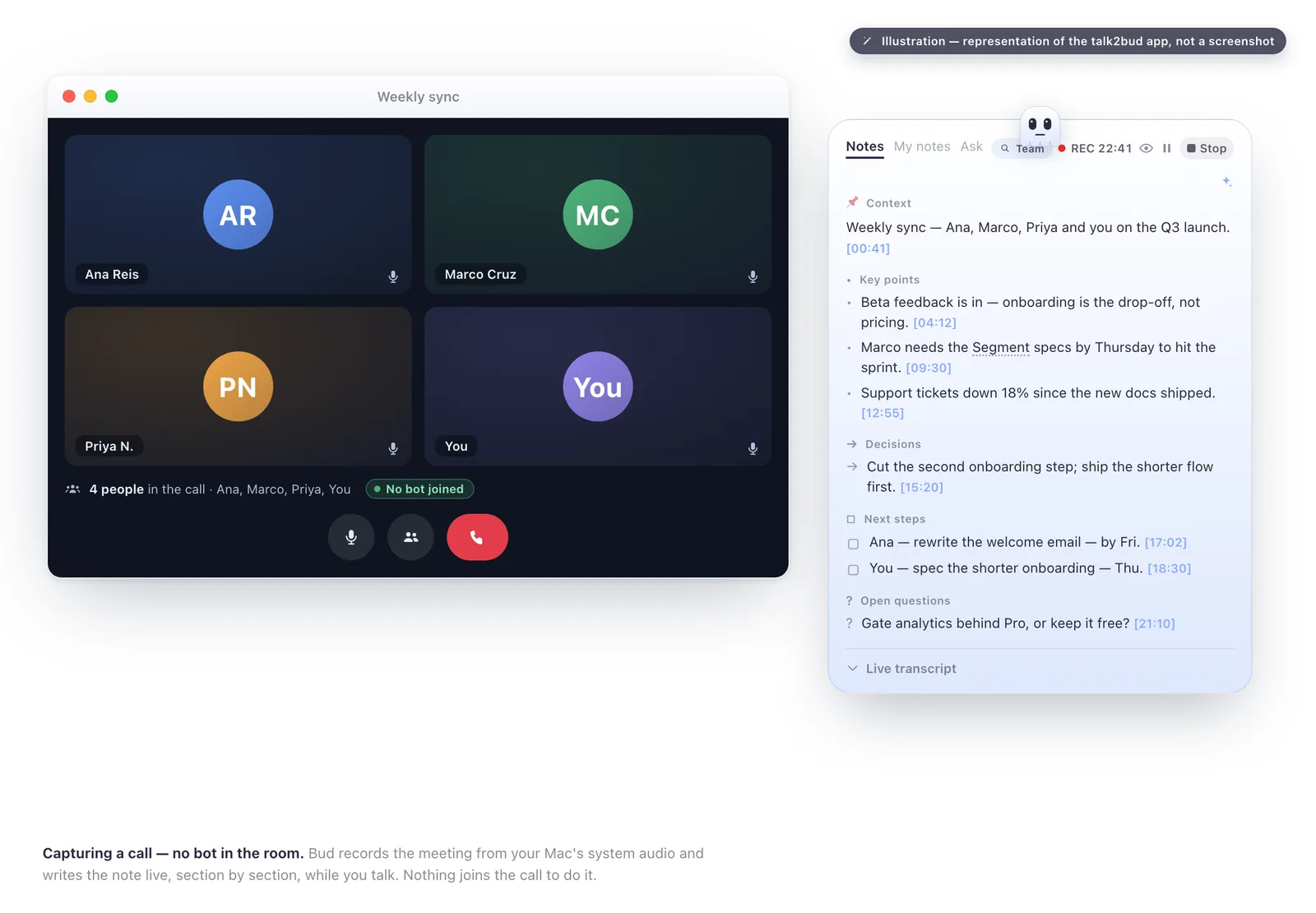
Illustration of the talk2bud app, not a screenshot: a call captured from your Mac's system audio, no bot among the participants.
The trade is worth stating plainly, because it is the point. talk2bud gives you the words and the read on them, and it does not hand you a video of the shared slides or sit in the participant list. If the deck on screen is what you need to keep, record it with one of the methods above. If the decisions and the follow-ups are what you need to keep, this is the path that hands them over the moment the call ends.
Download the Zoom Recording Checklist
The whole guide fits on one page you can tick before, during, and after a call: the role and plan check, the start steps for each method, where the files land, and the consent line.
Download the Zoom recording checklist (PDF, 4 pages, 322 KB)
It is free under a CC BY 4.0 licence, so reuse it or pass it to a team, with a credit link back. No email required.
The 60-Second Consent Script
An outside screen recorder does not trigger Zoom's own notice, so saying it yourself is what keeps a capture above board. Copy one of these before you start.
Spoken, at the top of the call:
"Before we begin, I'd like to record this so I can share notes afterward. It captures audio and whatever is on the shared screen. Is everyone okay with that? Tell me now if you'd rather I didn't."
In chat, if you'd rather not break the flow:
"Heads up: I'm recording this call for notes. Say so here if you'd prefer I stopped."
Whether you legally need every yes depends on where each person is sitting, not on where you happen to be. Before you lean on one-party rules, read whether it is illegal to record a conversation where you live, and see how capture differs across tools in the meeting recording guide.
Which Method Fits You
The right answer depends on who you are in the call.
- Hosting the meeting. Use the host recording. Local capture is free, saves to Documents/Zoom, and Zoom notifies the room for you.
- A participant the host trusts. Ask for Allow Record. You get the same files on your own machine, with the consent notice handled.
- In the room without the button. Screen record with your device, keep the Zoom window in focus, and test the audio before you count on it.
- After the words, not the picture. When you want the transcript rather than a screen video, with no bot and no permission prompt in the way, capture the call from system audio on your Mac, and still announce it so the capture is disclosed and not secret. Start talk2bud's 10-day trial, no card, and see whether the searchable read beats the recording you were about to chase.
Questions People Ask About Screen Recording on Zoom
Can you record a Zoom meeting without permission? Zoom will not let you use its built-in Record button without the host granting it, and it alerts everyone the moment recording starts. You can still capture the meeting with your device's screen recorder, such as the Mac Screenshot toolbar, the Windows Xbox Game Bar, or an iPhone's Control Center, and Zoom neither blocks nor detects those. On a Mac, talk2bud takes the same call from system audio as a transcript, also without Zoom's Record button, so the tool you pick does not change the rule: whether any of this is legal depends on the consent laws where each participant sits, so announce it first.
Does Zoom notify if you screen record? Zoom shows a recording indicator and notifies participants when someone uses Zoom's own Record feature. Zoom does not notify anyone, and cannot detect it, when a call is captured with an outside tool such as QuickTime or a phone recorder. Because that automatic notice is absent on the outside path, telling the room yourself is what keeps the recording honest.
Where are Zoom recordings saved?
Local Zoom recordings save to a folder named Zoom inside your Documents folder: /Users/[you]/Documents/Zoom on a Mac and C:\Users\[you]\Documents\Zoom on Windows (Zoom Support documentation, checked August 2026). Cloud recordings save to the Zoom Cloud and require a paid plan. Local recording works only in the Zoom Workplace desktop app, and never on phones or in the web client.
Can you screen record a Zoom meeting on iPhone? Yes. Open Control Center during the Zoom call and tap the record circle, and the capture runs without alerting anyone in the meeting. Audio is the piece to test first, since an iPhone tends to grab your own microphone rather than the other voices, so review a short clip before you rely on it.
Can you record a Zoom meeting if you are not the host? Yes, in two ways. The host can grant recording rights from the Participants panel, under More beside your name, then Allow Record, which puts the files on your own computer. Without that permission you can screen record the call with your device, or on a Mac let talk2bud take the conversation from system audio as a transcript, and either route calls for announcing it, because Zoom will not.
Can you record a Zoom meeting on the free plan? Yes. Local recording is available on every Zoom plan, including the free Basic plan, and saves straight to your computer (Zoom plan docs, checked August 2026). Cloud recording is the paid tier: it needs a Pro, Business, or Education plan and stays off until an admin turns it on.
How This Guide Was Verified
Verified August 2026. The steps and limits here were checked against Zoom Support ("Starting a computer recording," "Understanding recording file formats," "Managing computer recordings," the recording FAQ, and "Cloud recording storage capacity") and Apple's macOS help ("Take screenshots or screen recordings on Mac"). Reference versions: the Zoom Workplace desktop app at its global minimum version or higher, and macOS Sonoma. This guide reports documented behaviour from primary sources, and is not a lab test.