Desktop Pets: How They Work And What They Cost You
A desktop pet is a resident window. The four settings that make one on a Mac, a week with one, and the attention it bills while you look elsewhere.
Desktop Pets: How They Work And What They Cost You
Two questions hide inside a search for a desktop pet, and the app stores that rank for it answer only the easy one: which to download. The harder one, worth settling before you install anything, is what a small animated thing living above your work does to your attention across eight hours.
A desktop pet is a small animated character that lives in a window above your desktop, reacting to the cursor or idling on its own. It stays resident instead of being opened and closed, which is why people also call it a desktop buddy, screenmate, or mascot.
The load-bearing word there is resident. Four settings turn an ordinary window into a pet, and the research on motion at the edge of your vision explains what that residency costs the work in the middle of it. One test sits under all of it, and it is the one talk2bud is built on: a character that occupies your screen should hand something back. Bud, the ghost who lives along the screen edge, sleeps, wears skins, and turns speech into finished text and calls into notes, which makes him a pet with a job.
What A Desktop Pet Is, In One Screen
A pet is set apart from the rest of your desktop by two traits. It resides, so you never open it and it sits above your windows on every desktop you switch to. And it behaves, so it holds states: it chases the cursor, it gets bored, it sleeps, it wakes when the mouse moves.
The category is loose enough that Wikipedia has no entry for it: search there and you land on Virtual pet, where Neko is listed as the first known one, ahead of Dogz in 1995, Catz in 1996, and Tamagotchi the same year.
Both traits point at the same bill. Every state change is motion inside your peripheral vision while you read something in front of it, and motion is the hardest thing at the edge of your eye to ignore. So the question that decides whether one of these is charming or expensive is never how it is drawn. It is what the thing does when you are not looking at it.
Where They Came From: Neko, Shimeji, Clippy, Bonzi
Neko reached the Macintosh in 1989 as a desk accessory ported by Kenji Gotoh, who also drew the sleeping frames. The cat chases your pointer, and when it catches up it stares, scratches, yawns, and sleeps until the pointer moves again. Shimeji came later out of Group Finity in Japan, written by Yuki Yamada, and became the sprite format the genre still copies; the maintained English fork says plainly that its official build needs Java and runs only on Windows. Microsoft's Office Assistant took the same anthropomorphic idea and had it speak up while you worked. BonziBUDDY turned the idea into a business, and that business ended with Bonzi Software paying a $75,000 civil penalty in February 2004 to settle FTC charges that its purple gorilla collected personal information from children.
Two of those four are remembered fondly and two are punchlines, and the split has nothing to do with the artwork. Neko and Shimeji wait. Clippy and Bonzi interrupt.
The Four Moving Parts, On A Mac
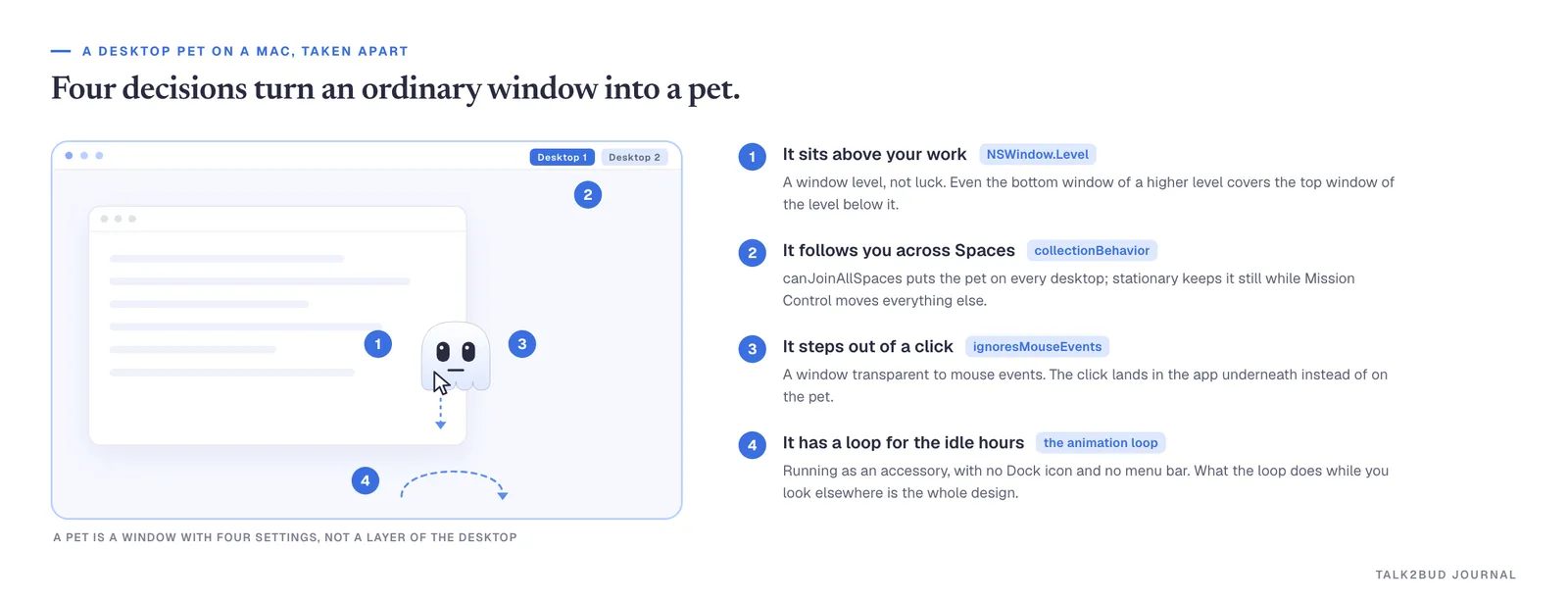
Take the sprite away and a pet is an ordinary window with four settings changed. Each has a name in AppKit, which makes this category unusually easy to inspect.
1. Where it sits: the window level. Apple's documentation for NSWindow.Level is blunt about what a level buys: "The stacking of levels takes precedence over the stacking of windows within each level. That is, even the bottom window in a level will obscure the top window of the next level down." A pet asks for a level above normal, usually floating, which Apple describes as "Useful for floating palettes." One line of configuration, and the character can never be buried by your work. That is what makes it feel alive, and it is the first half of the bill.
2. Where it follows you: the collection behavior. NSWindow.CollectionBehavior covers "Mission Control, Spaces, and Stage Manager." Two constants do the work. canJoinAllSpaces means "The window can appear in all spaces," so switching desktops does not leave the character behind. stationary means "Mission Control doesn't affect the window, so it stays visible and stationary, like the desktop window." A pet stranded on Desktop 1 stops reading as a pet within a day.
3. Whether it blocks you: mouse events. ignoresMouseEvents is "A Boolean value that indicates whether the window is transparent to mouse events." A pet you can pet needs to receive clicks; a pet parked over your sidebar needs to pass them through. If a character has ever eaten a click you meant for something else, this flag is the reason.
4. How it lives: activation policy plus the loop. NSApplication.ActivationPolicy.accessory says the application "doesn't appear in the Dock and doesn't have a menu bar, but it may be activated programmatically or by clicking on one of its windows." Inside runs a plain idle loop: a timer, a set of states, and rules for moving between them. Bud is put together this way in talk2bud, parked at the edge of the display, sleeping when nothing is happening, changing skins.
Read the four together and the honest picture appears. Three of them buy presence: front-row seating in your visual field, on every desktop, out of the Dock. Only the fourth decides behavior. Presence is the easy part to ship, and the loop is the part you actually live with.
A Week With A Desktop Buddy, Day By Day
The week below is an illustrative example, written to show how the loop feels over time rather than a log of measured usage. Assume a Mac, a job with reading and writing in it, and one animated character installed on Monday morning.
Monday. You watch it more than you work, and that is fine. You drag it around, click it, hunt for the animation it plays when ignored. Nobody should count Monday.
Tuesday. The first real data point arrives while you are reading. The character crosses the corner of your eye halfway down a long document and you look. Nothing has gone wrong, exactly, but reading and a moving thing are now competing for the same equipment.
Wednesday. You fix it by moving the pet: bottom right, away from where text lives. macOS applies that same fix to its own resident objects. Apple's support page for desktop widgets documents a Dim widgets on desktop setting with three options, Automatically, Always, and Never. The system's answer to a permanent object is to have it recede while you work. Your pet has no such setting, so you become the setting.
Thursday. A call starts, and the character bounces at the exact moment someone says the thing you needed to write down. Twice in one week, a drawing decided where your attention went, and this time somebody was talking while it did.
Friday. The ledger, one question long: name one thing this handed back this week. For a decorative pet the honest answer is nothing, which is fine if company was the point, since people keep plants for the same reason. For a working pet the answer is countable: paragraphs you spoke instead of typed, a meeting you never rewatched because the notes were already written. If the answer is nothing and company was not the point, uninstall on Friday rather than on the third Monday, when it has quietly become furniture.
Pet, Widget, Or Virtual Pet: What Sits Where
Four kinds of thing get filed under one idea, and they ask for very different amounts of you. The fifth row is the one with a job.
| Kind | What it is | Where it lives | What it asks of you | What it hands back |
|---|---|---|---|---|
| Desktop pet | An animated character in a resident window | Above your windows, on every Space | Attention, by design | Company |
| Desktop widget | A data panel the system ships | Pinned to the desktop, dimmable | A glance | One fact, no loop |
| Virtual pet (Tamagotchi-like) | A creature that needs feeding and can die | Its own app or device | Scheduled care | A game |
| Menu bar utility | An icon with a menu behind it | 24 points of menu bar | A click | A function, no character |
| A pet that works (Bud, in talk2bud) | A character wired to dictation and call capture | The edge of a Mac screen | A held key | Finished text and call notes |
The rule that falls out of the table is about failure states. A Tamagotchi-like pet punishes neglect, which is the entire game, and also why virtual pets were banned in American schools for demanding constant attention. Neglect is the one thing a desktop pet must never punish; the moment it needs you, it has become Clippy.
Where the last row loses is worth saying plainly. If you want a specific character, an imported sprite sheet, an anime mascot you picked yourself, Shimeji or Desktop Mate wins outright, and on Windows talk2bud is not in the running at all. It runs on Apple Silicon Macs and works in English, and that focus is why the last column of that row has anything in it.
Where They Break (And Who Should Skip One)
The strongest evidence against a moving character is old and specific, and the pages selling one never cite it. Ping Zhang's study in the Journal of the Association for Information Systems tested animation as a secondary stimulus and stated its first finding flatly: "Animation as a secondary stimulus deteriorates viewer information seeking performance." The fourth finding is the one that should govern your choice: "Animation that is brightly colored has a stronger negative effect on viewer performance than does dull colored animation." A muted character costs you less than a saturated one, which is a real design rule and appears on no download page.
The second body of evidence is about manners. Luke Swartz's Stanford honors thesis, Why People Hate the Paperclip, written under Clifford Nass, calls the Office Assistant "almost a textbook case of what not to do in designing a user interface agent." The diagnosis is that a good agent leaves the user feeling in control and follows human rules of etiquette, and Clippy did neither. Anything that appears at the moment you are busiest, offering help, inherits that problem.
The category's own numbers say the audience is split. Desktop Mate, the most visible pet of this wave, launched on Steam on 7 January 2025, announced 1.5 million downloads by July, and carries 9,209 reviews with an aggregate rating of Mixed; among the 5,238 English reviews, 60% are positive. Its Mac build is the tightest requirement in the category: macOS Tahoe on Apple Silicon, 8 GB of RAM minimum and 16 GB recommended. On discussion boards for apps of this kind, the recurring complaint is memory use out of proportion to what the app actually does.
Four people should skip this entirely. Anyone whose job is sustained reading or visual search, because Zhang's first finding is aimed at exactly that. Anyone on a managed work machine, where an always-on unsigned process is a conversation with IT you do not want. Any parent setting one up on a child's computer, since the BonziBUDDY settlement was about data taken from children and today's AI-flavored pets ask for far more access than a 2004 gorilla did. And anyone already fighting their machine for memory.
Using talk2bud As A Mascot That Hands Work Back
If a character is going to hold that seat all day, it can do more from there than keep you company.
- Let him live at the edge and stay quiet. Bud sits along the edge of the screen, has moods, sleeps when nothing is happening, and wears skins. Nothing in that loop asks you for anything, which is the Neko rule rather than the Clippy one.
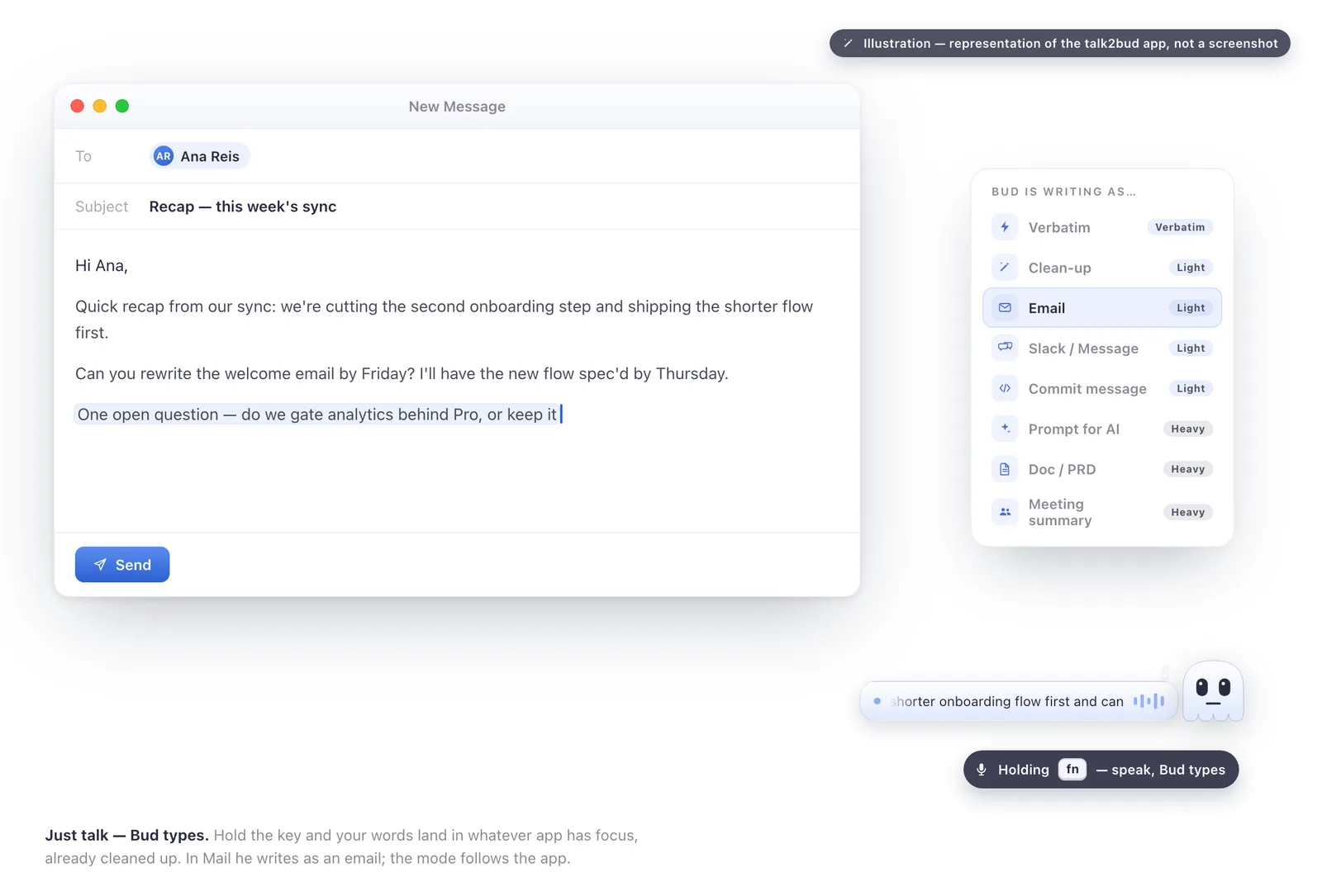
- Hold the key and talk instead of typing. Speak, and the words land as finished text in whatever app has focus, cleaned up rather than dumped in raw. The mode follows the artifact, so an email comes out as an email and a commit message comes out as a commit message. That is dictation built for the Mac, rather than a browser tab you paste out of.
- Point him at the call you are already in. When a meeting starts, talk2bud captures it from your Mac's system audio, so nothing joins the call as a participant and no bot shows up in the attendee list. Capturing without a bot is not the same as capturing in secret: you still tell the room it is being recorded, and the app keeps that consent step explicit for that reason. The mechanics are the ones behind capturing a call without a bot in the room.
- Pick a Lens before the call, read the analysis after. A Lens is a small analysis playbook for a meeting type, either a built-in one or your team's own. When the call ends, the app reads the transcript against it and hands back the decisions, the owners, and the dates. A one-to-one stays between the two people in it and never lands in a shared channel by default.
Then measure it the way you would measure any permanent tenant, with Friday's one question. Count what came back: the messages you spoke rather than typed, the call whose decisions were waiting for you when it ended. If cost is part of the decision, what talk2bud costs sits on one page, and the best note-taking apps for students compares how different capture styles feel in practice.
Frequently Asked Questions
What is a desktop pet?
A desktop pet is an animated character that stays on screen while you work, floating above your other windows and responding to the mouse or amusing itself when nothing happens. You never open or close it the way you would an app. Neko, Shimeji, Desktop Goose, and Desktop Mate are the best-known examples.
How do desktop pets work?
Underneath the artwork, a desktop pet is a normal window with four settings changed: a raised window level so it sits above your other windows, a collection behavior that puts it on every desktop or Space, a mouse-event setting deciding whether clicks hit the character or pass through to the app below, and an animation loop that drives its idle states. On macOS those four are NSWindow.Level, NSWindow.CollectionBehavior, ignoresMouseEvents, and an activation policy that keeps the app out of the Dock.
Are desktop pets safe?
A desktop pet is only as safe as its publisher, and the category has a real history of abuse: in February 2004 the FTC announced that Bonzi Software paid a $75,000 civil penalty over its BonziBUDDY character collecting personal information from children in violation of COPPA. Install from a source with an identifiable developer, such as a signed Mac app, a Steam page, or a named itch.io creator, and check what access the app asks for, since newer AI-flavored pets request much more than an animation needs.
Do desktop pets work on Mac?
Some do, though the category is still mostly built for Windows. Desktop Goose runs on macOS 10.10 and later, and Desktop Mate has a Mac build that requires macOS Tahoe on Apple Silicon with 8 GB of RAM. The original Shimeji is the notable gap, because it needs Java and has no official Mac build. talk2bud is a Mac-native take on the pattern, with the character attached to dictation and call notes instead of a sprite sheet.
What is a Shimeji desktop pet?
A Shimeji is a Japanese desktop pet format created by Yuki Yamada at Group Finity, in which a small character climbs, hangs from, and walks along the edges of your windows. It spread because its sprites are swappable, so thousands of fan-made characters exist in the same format. The maintained English version, Shimeji-ee, requires Java and its official build runs only on Windows, which is why Mac users look for a community fork.
What are desktop pets called?
Desktop pets go by several interchangeable names: desktop buddy, desktop mascot, screenmate, desktop companion, and computer desktop pet. Shimeji is often used for the whole category, though it properly names one Japanese format. Virtual pet is a related but different term, usually meaning a creature with needs and a fail state, like a Tamagotchi, rather than a character that simply lives on your screen.
Pick The Read Before Your Next Call
Thirty-seven years of these things sort by one test, and it is the one to carry into whichever you install: what it does when nobody is looking. Neko sleeps. Clippy interrupts. Bonzi charged. A pet earns its seat by waiting quietly and then handing something back.
To see what handing something back looks like, do one thing before your next meeting. Pick the Lens that matches the meeting type, then read what comes back when the call ends instead of replaying it. That single read is the whole argument for keeping a character on your screen, and one call is enough to tell you whether it is worth the room.
Verified August 2026 against Apple's AppKit and Apple Support documentation, Ping Zhang's 2000 animation study, Luke Swartz's 2003 Stanford thesis, the FTC's February 2004 press release, and the public store pages linked above. Nothing here is a measured benchmark of any app.