How To Get The Zoom Chat Transcript (And What It Leaves Out)
Save the in-meeting chat as host or participant, where the TXT file lands, what the log does and does not capture, and how to keep the words that were only ever spoken.
How To Get The Zoom Chat Transcript (And What It Leaves Out)
To get the Zoom chat transcript, you save the in-meeting chat while the meeting is still open: click Chat, open the ellipses menu above the message list, and click Save Chat, or switch on auto-save so it happens without you. Zoom writes it to a plain TXT file on your computer, and the whole thing takes about fifteen seconds. What deserves a slower read is what that file actually is. A chat transcript is a record of what people typed in the side panel, the links, the one question someone dropped in, a name spelled out. It is not a record of what was said. The decision that landed at minute 31, the number a colleague quoted, the follow-up someone promised out loud, none of that was ever in the chat. This guide covers every native way to keep the chat log, host or participant, exactly what it captures and where it stops, and the step past it for the words that were only ever spoken.
The short version:
- During the meeting, click Chat, then the ellipses (the three-dot menu) at the top of the panel, then Save Chat.
- To keep it automatically, switch on auto-save in Zoom's web settings (host only).
- The file lands in Documents / Zoom, in a folder named for the meeting.
- Recording to the cloud keeps the public chat alongside the video.
Before You Save The Chat
Three things decide whether the Save Chat button is even there, and it is worth running them before you rely on it.
| What decides it | Where it lives | What to know |
|---|---|---|
| Your role | Host, co-host, or participant | A participant can save the chat as readily as the host, if the account allows it |
| The account switch | Web settings, In Meeting (Basic) | The account-level save-chats permission must be on |
| Your app | Zoom Workplace desktop app | Saving the chat is a desktop feature; the web client will not do it |
| Auto-save | Web settings, Meeting chat | It writes the chat for you, but only for the host of the meeting |
The account switch is the one that surprises people. Unchecking "Allow users to save chats from the meeting" "prevents all meeting participants, including the host, from saving the chat transcript," in Zoom's own words (Zoom, Saving in-meeting chat, verified August 2026). So if the Save Chat option is missing for everyone, an admin turned it off account-wide, and no click in the meeting brings it back.
Save The Chat During The Meeting
The manual path works the same whether you host or attend, and it is four steps.
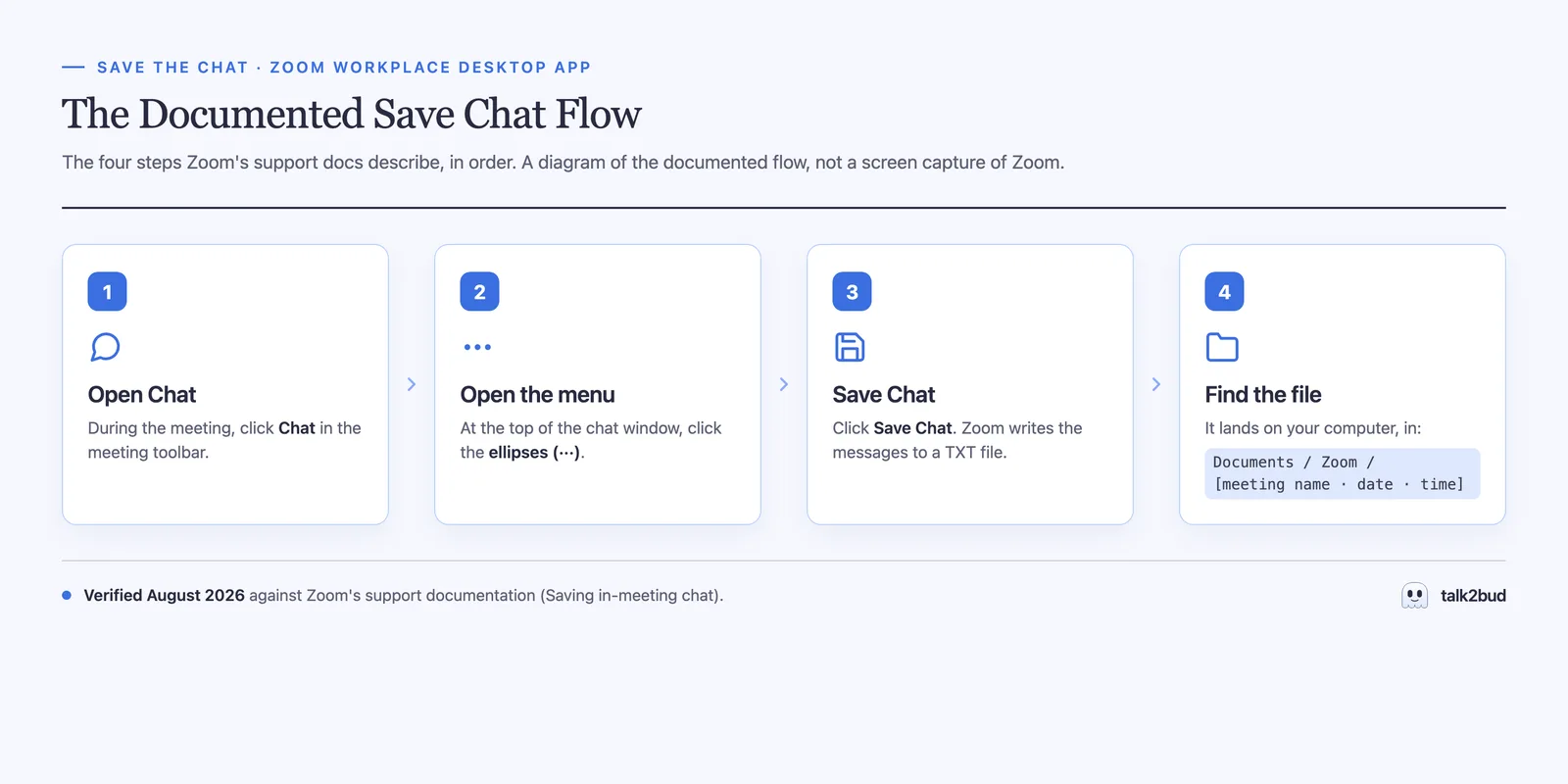
- Open the chat. In the meeting, click Chat in the toolbar. The panel opens on the right.
- Open the menu. Click the ellipses (the three dots) just above where you type your message.
- Save the chat. Click Save Chat. Zoom writes every message you can see to a TXT file, with a timestamp and a sender on each line.
- Confirm the file. It saves to your computer, under Documents / Zoom, in a subfolder named for the meeting, its date, and its time. Open that folder before you leave the call, so a missing file is a problem you catch while you can still fix it.
Zoom's documented wording is exact: "During the meeting, click Chat. At the top of the chat window, click the ellipses, then click Save Chat" (verified August 2026). It reads as a host instruction, but it is a participant one too, gated only by the account setting above.
Auto-Save, Cloud Recording, And After The Meeting
Manual saving assumes you remember. Two settings do it without you, and each keeps something different, which is where most of the confusion lives.
Auto-save, and it is host-only. From Zoom's guide to auto-saving chats: "Enabling auto-saving chats allows meeting hosts and webinar hosts/panelists to automatically save a copy of their in-meeting and in-webinar chats on their computer" (verified August 2026). Turn it on under Settings, the Meeting tab, In Meeting (Basic), Meeting chat, Auto-save. It writes to the same Documents / Zoom location a manual save uses. The limit is in the name: it saves for the host, so when you attend someone else's meeting, their auto-save does nothing for your copy. Save it yourself.
Cloud recording, and it narrows to public. If you record the meeting to the cloud on a paid plan, Zoom keeps the chat text next to the video. The scope is tighter than a manual save, though: "Zoom only records public chat messages during the recording session," per Zoom's recording FAQ (verified August 2026). The cloud copy holds what was sent to everyone while the recording ran, and nothing typed before you pressed record. If you also want the video and audio of the call, that is a separate capture, and the guide to screen recording a Zoom call walks through it.
After the meeting, if nobody saved. An unsaved chat is gone the moment the meeting ends. Zoom does not tuck a copy away to hand you later, and messages that were never saved or recorded are not retrievable through its API. If the chat was not kept by a manual save, by the host's auto-save, or inside a cloud recording, there is no button that brings it back.
What The Chat Log Captures, And Where It Stops
Here is the boundary, drawn against Zoom's documentation one row at a time.
| The message | Whether you keep it | Source |
|---|---|---|
| Public messages sent to everyone | Kept by every save method | Zoom, Saving in-meeting chat |
| A direct message sent to you | Kept only in a local manual save, "those sent directly to you and those sent to everyone" | Zoom, Saving in-meeting chat |
| Direct messages between other people | Never yours to keep; the host cannot see participants' private messages | Zoom, Disabling private chats in meetings |
| The cloud copy | Only "messages that were sent to everyone and messages sent while you were cloud recording" | Zoom, Saving in-meeting chat |
| What was said out loud | Not in the chat log by design; the file is typed text | Definitional |
Read the rows top to bottom and the shape is plain. The chat log is a faithful record of one channel, the text panel, and a partial one at that: your local save can hold the direct messages you received, the cloud copy drops them, and neither holds a word that was spoken instead of typed. For a link somebody pasted, that is plenty. For the reason a decision went the way it did, the chat file was never going to have it, because that reason was spoken, not typed. That gap is the whole case for capturing the call itself, which is the next section.
Keep What Was Said, Not What Was Typed
The chat transcript keeps the sidebar. To keep the conversation, you capture the audio of the call. On an Apple Silicon Mac, in English, talk2bud does this from the Mac's own system audio, the same sound already reaching your speakers, so nothing joins the meeting as a participant. A capture with no bot is not a capture in secret, so the consent step below stays part of the flow, not an afterthought. Here it is, in order.
- Open talk2bud before the call. It listens to your Mac's system audio, so there is no bot in the participant list and no Record permission to request from a host. Both sides of the call come through.
- Say you are recording. Because talk2bud captures system audio rather than joining as a visible bot, the room sees no recording indicator, which is exactly why saying it out loud is the honest step. Capturing without a bot is not capturing in secret; it stays above board only when you still tell the room and get their yes, and the app treats that consent as an explicit step. The 15-second script sits in the next section.
- Pick the Lens for the meeting. A Lens is a playbook for one kind of call: a sales call, a team sync, a 1:1, a client discovery call, an interview. Choose the built-in that fits, or build your own from the way your team already works.
- Read the analysis when the call ends. talk2bud measures the transcript against the Lens you picked and lays out what was said: the decisions, the open questions, and the action items with an owner and a deadline on each. You read that in place of scrubbing a recording.
- Keep it where it belongs. For a team call, a chosen call and its analysis can live in a Channel the group can see. A 1:1 stays between the two people by default and does not go to a Channel, because that conversation belongs to them.
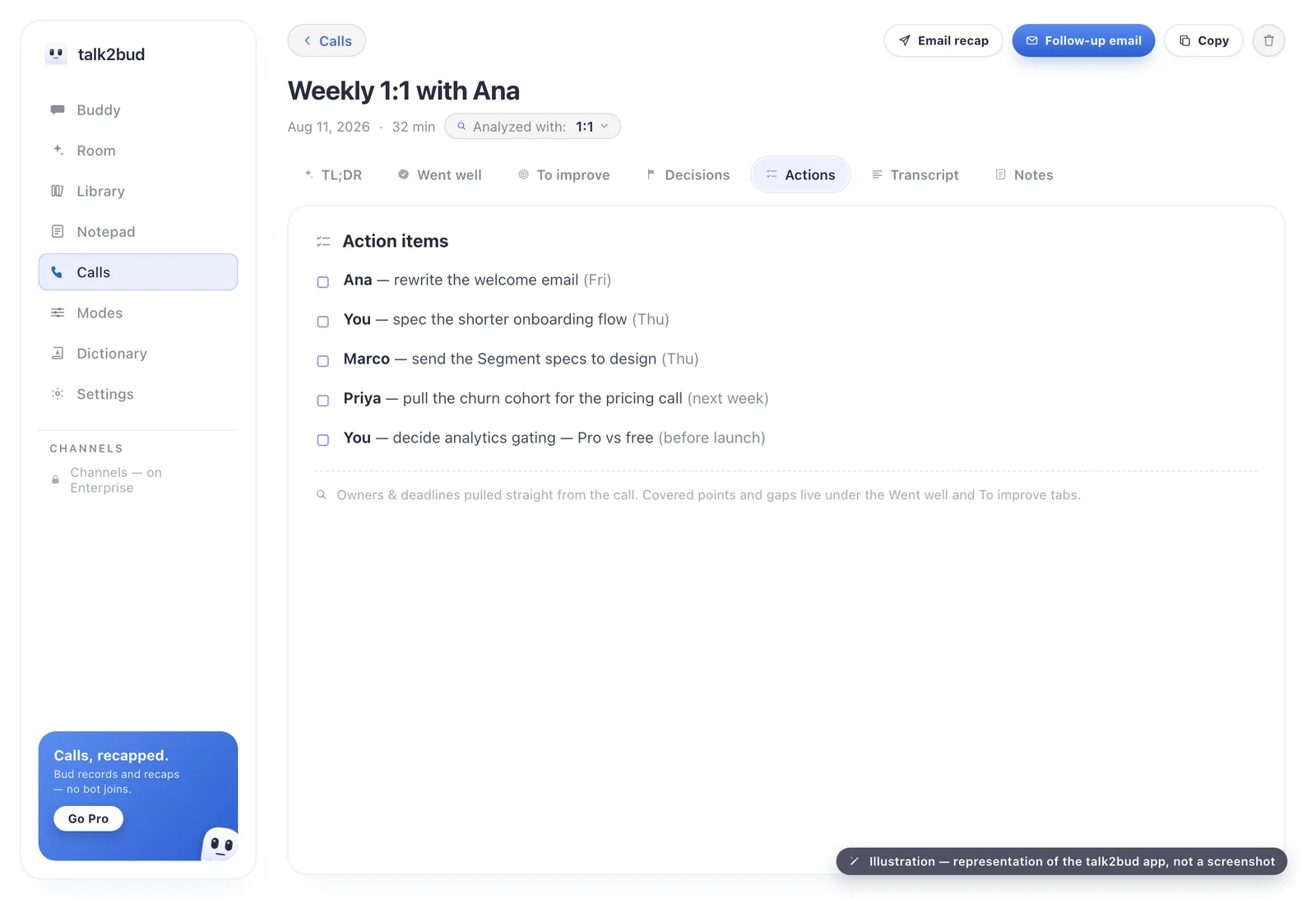
The trade is worth naming. talk2bud hands you the words and the read on them; it does not hand you the typed chat panel or a video of the shared slides. If the pasted links are what you need, save the chat with the steps above. If the reasons and the commitments are what you need, this keeps them the moment the call ends. It is built for the conversation, on a Mac, in English, and that focus is the reason it does the one job well.
Say You're Recording (The 15-Second Script)
Whether you keep the chat, the recording, or the spoken transcript, the honest move is the same: tell the room. Zoom's own recording announces itself with an on-screen notice; an outside capture does not, so you say the line yourself.
"Quick note before we start: I'm capturing this call so I don't lose the decisions and follow-ups. Say the word if you'd rather I didn't, and I'll stop."
Whether you legally need every person's yes depends on where each of them is sitting, not on where you happen to be. Before you lean on one-party rules, read whether it is legal to record a conversation where you live, and treat the announcement as the default even when the law would let you skip it.
Zoom Chat Transcript FAQ
How do I get a transcript of a Zoom chat? A Zoom chat transcript comes from saving the in-meeting chat: open the Chat panel, click the ellipses above the message list, and choose Save Chat, and Zoom writes the messages to a TXT file on your computer. You can also turn on auto-save under Zoom's meeting settings so the host's chat is kept automatically, or record the meeting to the cloud to keep the public chat. A Zoom chat that was never saved cannot be recovered once the meeting ends (verified against Zoom's support documentation, August 2026).
Where are Zoom chat files saved? Saved Zoom chat files are written to your computer in the Documents folder, inside a Zoom folder, in a subfolder that carries the meeting's name, date, and time. The file is a plain TXT file. Auto-saved chats land in the same local Zoom folder that manually saved ones use (verified August 2026).
Can you retrieve Zoom chat after a meeting? You can retrieve a Zoom chat after a meeting only if it was kept during the meeting, by a manual Save Chat, by the host's auto-save setting, or inside a cloud recording. Zoom does not store in-meeting chat retroactively, so a chat that was never saved is lost when the meeting ends and cannot be pulled back through Zoom's API.
Does Zoom save private chats? A local manual save keeps the private messages you personally received, because it stores the chats you can see. A cloud recording does not; it holds only the public messages, the ones sent to everyone. Messages between other participants are never captured, since, in Zoom's words, "private messages between participants are not viewable by the host" (verified August 2026).
Can participants save the Zoom chat? Yes. A participant can save the Zoom chat the same way a host does, by clicking the ellipses above the chat and choosing Save Chat, as long as the account's chat-saving setting is on. If that account setting is off, the Save Chat option disappears for everyone in the meeting, the host included (verified August 2026).
Verified August 2026. The steps, file locations, and capture limits above were checked against Zoom's support documentation in August 2026: Saving in-meeting chat, Enabling meeting and webinar auto-saving chats, the recording FAQ, and Disabling private chats in meetings. Zoom adjusts its interface from time to time, so confirm the exact menu labels in your own version.
The Short Version, By What You Need
- You kept the chat, as host or participant. You have the typed panel in a TXT file under Documents / Zoom, with the direct messages you saw included if the save was local.
- You recorded to the cloud. You have the public chat next to the video, and nothing sent privately or typed before you pressed record.
- You need what was actually decided. The chat file will not have it, because it was spoken; capture the call itself.
One next step, not five. Before your next meeting that matters, decide which record you actually need. If it is the pasted links, the four steps above are all you need. If it is the decisions and the promises, see how meeting-recording tools capture the conversation, and keep the words that were never typed.